How to Change DPI on Your Phone (Android & iPhone)
You cannot change the DPI of a photo from the gallery app on your phone. The Photos app on iPhone and the Gallery app on Android do not show the DPI value at all, and they have no setting to edit it. That is not a bug — those apps are built for viewing pictures on a screen, and on a screen the DPI label makes no difference. But the number does matter when you print a photo or upload it to a form that demands a DPI value, and for that you need a tool that can edit the file's metadata.
November 18, 2026
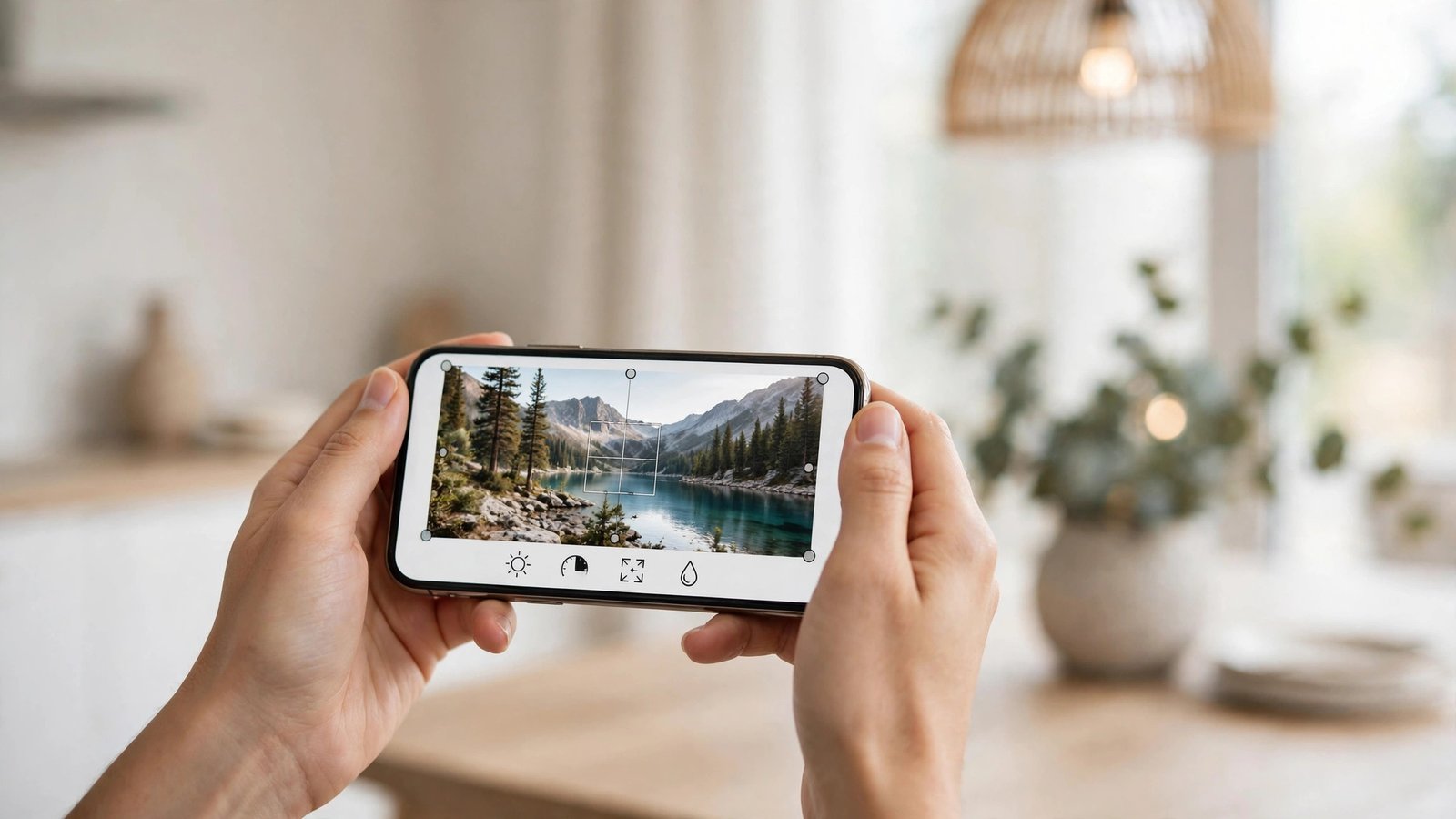
Why the gallery app cannot do it
It helps to know why this gap exists, because it stops you wasting time hunting through settings that were never there. A phone gallery is a viewer and a light editor: it crops, rotates, filters and organises. DPI is a piece of print metadata buried inside the file, and it has no effect on anything the gallery does. Apple and Google both decided, reasonably enough, that a viewer does not need a print setting. So there is no DPI slider in Photos, no DPI field in Gallery, and no hidden menu to unlock.
Change DPI on Android, step by step
The simplest way is to do it in your phone's browser, with no app to install. Open our DPI converter in Chrome on your Android phone and tap the upload area. Your phone will offer a choice: take a photo, or pick one from your library. Choose the photo from your library, and the converter will read it and show its current size. Then choose the DPI you need — 72, 150, 300, 600, or a custom value — and tap convert. The converted file downloads to your phone, usually into the Downloads folder, and it keeps exactly the same pixels as the original. Only the DPI label inside the file changes.
Android also has a setting called "smallest width" hidden in the developer options, and you may see guides online telling you to change your phone's DPI that way. Ignore those guides for this job. That setting changes how big text and icons look on your screen. It has nothing to do with the DPI tag inside a photo.
Change DPI on iPhone, step by step
On an iPhone the method is the same, just in Safari instead of Chrome. Open our DPI converter in Safari, tap the upload area, and choose Photo Library. Pick the photo you want to change, choose the DPI value you need, and tap convert. Safari will ask where to save the download; choose Downloads, or save it to Files so you can find it again easily. The whole thing takes under a minute, and the downloaded file keeps exactly the same pixels as the original.
iPhone photos also deserve a note about size. A recent iPhone saves photos at 4032 × 3024 pixels by default. That is a large file, and it prints at 13.4 × 10.1 inches at 300 DPI, or 26.9 × 20.2 inches at 150 DPI. So in most cases the pixels are more than enough, and all you need is the right label stamped on the file. If your iPhone is set to save photos in HEIC format, convert the photo to JPG first, because many DPI tools and print shops still expect JPG or PNG. Our converter page can help with format changes.
What actually changes — and what does not
That last point is worth repeating, because it catches people out. Changing DPI does not make a photo sharper, clearer, or more detailed. It only changes the size the printer will aim for. A 3000 × 2000 pixel photo prints at 10 × 6.7 inches at 300 DPI and at 20 × 13.3 inches at 150 DPI, but it is the same photo either way. If your picture looks soft, the problem is the pixel count, not the DPI label, and no converter can add detail that was never captured.
Here is the same idea with a smaller file, because phone screenshots are the files people most often try to fix this way. A screenshot of 1920 × 1080 pixels prints at 6.4 × 3.6 inches at 300 DPI, and at 12.8 × 7.2 inches at 150 DPI. Stamping it at 300 DPI does not make the text in the screenshot any sharper. It only tells the printer to make a small print.
The change also does not affect how the photo looks on your phone. Open the converted file in your gallery and it will look identical to the original, because the gallery shows pixels, not the DPI label. The difference only appears when the file is printed or when a system reads the metadata. That is normal, and it is exactly how DPI is supposed to work.
How to send the file without losing the new DPI value
One more thing to watch out for is how you share the file afterwards. Messaging apps like WhatsApp compress photos and strip their metadata, including the DPI tag, when you send them as photos. If you changed the DPI and then send the file through a chat app, the person at the other end may receive a file with no DPI value at all. Send it as a file or document instead — in WhatsApp that is the paperclip, then Document — and the DPI label survives. You can confirm it arrived intact by running the file through our DPI checker before you send it on.
Email is safer than chat apps but not perfect. Most email apps attach the original file untouched, so the DPI tag survives, but some phones offer to shrink photos when you attach them to an email. If your phone asks whether to send the photo at actual size or a smaller size, always choose actual size. Cloud drives such as Google Drive, iCloud and Dropbox keep the file exactly as uploaded, so they are a reliable way to move a converted photo to a computer for printing. For the general method on any device, see our guide to increasing DPI online for free.
Frequently asked questions
Can I change DPI in the iPhone Photos app?
No. The Photos app does not show or edit the DPI value. Use a browser-based DPI converter in Safari instead: upload the photo, pick the DPI you need, and download the result. The pixels stay exactly the same.
Can I change DPI in the Android Gallery app?
No. The Gallery app has no DPI setting. Open a DPI converter in Chrome on your phone, upload the photo from your library, choose the DPI value, and download the converted file. No app install is needed.
Will changing DPI on my phone make my photo sharper?
No. Changing DPI only changes a metadata label that tells the printer how big to make the print. A 3000 × 2000 pixel photo prints at 10 × 6.7 inches at 300 DPI and 20 × 13.3 inches at 150 DPI, but it is the same photo either way.
Why did my DPI value disappear after I sent the photo?
Messaging apps like WhatsApp compress photos and strip metadata, including the DPI tag, when you send them as photos. Send the file as a document instead, using the paperclip and then Document, and the DPI label survives.
Before & after sample
Sample photo — try the tool above with your own image for the real result.

← Back to all blog posts · All Guides · Increase DPI of an image