Blur Part of Image Online
Hide exactly one part of a photo — a face, a name, a password in a screenshot — and leave the rest sharp.
Region Privacy Tool
One image at a time. Processed locally in your browser.
Drop an image here
or click to browse · JPG, PNG, WEBP, BMP, GIFSharing a screenshot usually means sharing too much: a name in the corner, an email address, a password in a chat, a face in the background. Covering the whole photo is overkill — you only need one rectangle hidden.
Set the rectangle by pixel numbers, choose blur, pixelate or a solid cover, and set the strength. The preview outlines the region live, so you can check nothing important is left visible. Strong blur and large pixel blocks genuinely destroy the detail in the download — it cannot be recovered from the file afterwards.
To hide the entire photo instead, use the pixelate tool or the blur slider in the filters.
How to use it
Upload
Drop your photo or screenshot. It appears in the preview.
Set the region
Type the rectangle's position and size, pick blur, pixelate or solid cover, and set the strength.
Download
Download the protected photo as JPG or PNG immediately.
Frequently asked questions
Can a blurred region be un-blurred later?
Blur, pixelate or solid — which is safest?
Can I hide more than one region?
Is my photo uploaded?
Before & after sample
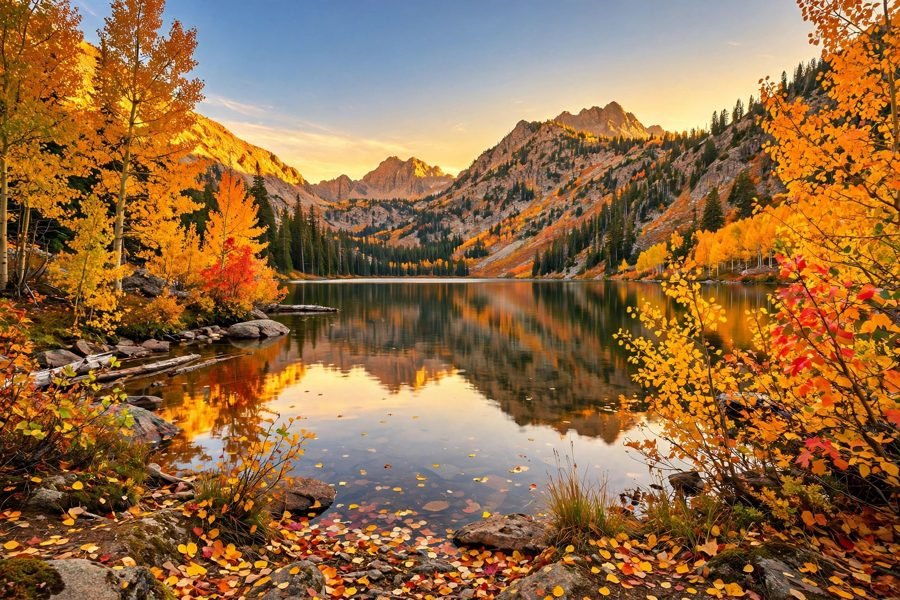
Sample photo — try the tool above with your own image for the real result.