Pixelate Image Online
Turn a photo into chunky retro pixel art — or hide a detail behind mosaic blocks.
Pixelate Tool
One image at a time. Processed locally in your browser.
Drop an image here
or click to browse · JPG, PNG, WEBP, BMP, GIFPixelation has two very different uses. Small blocks turn a photo into retro pixel art — the 8-bit look that suits game graphics, posters and playful posts. Large blocks hide information completely: a face, a number plate, a document detail, reduced to anonymous squares.
Drag the block-size slider and the preview updates live. Small blocks keep the photo recognisable with a retro feel; large blocks make details genuinely unreadable, which is the point when you are censoring. The download is a new file — your original is never touched.
To hide just one area instead of the whole photo, use the blur region tool — it blurs or pixelates only the rectangle you choose.
How to use it
Upload
Drop your photo. It appears pixelated in the preview.
Set the block size
Small blocks for pixel art, large blocks to hide details.
Download
Download the pixelated photo as JPG or PNG immediately.
Frequently asked questions
What block size should I use?
Does pixelation really hide details?
Can I pixelate just one area?
Is my photo uploaded?
Before & after sample
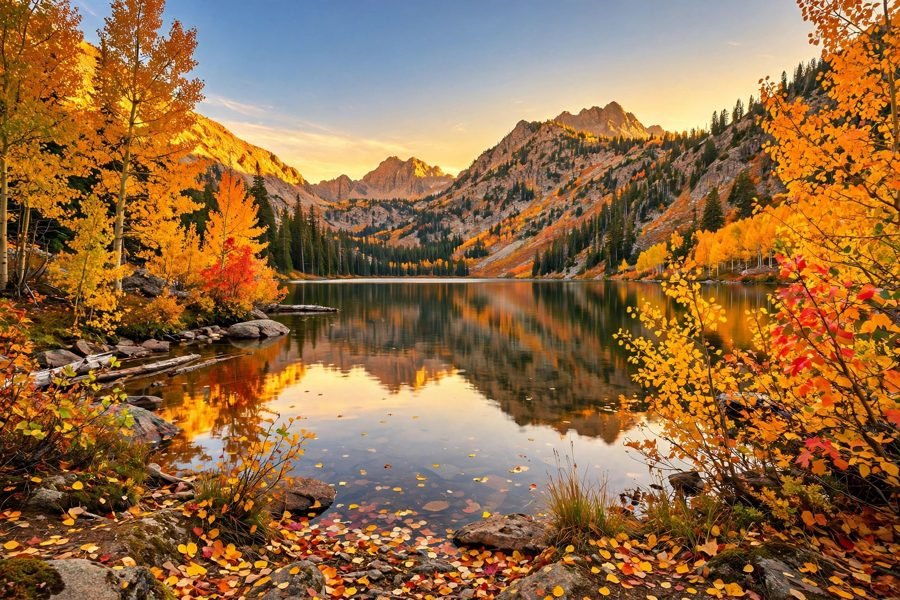
Sample photo — try the tool above with your own image for the real result.