300 DPI vs 72 DPI: What Actually Changes
"72 DPI" and "300 DPI" get thrown around as if they were quality grades. They are not. A file labelled 72 DPI is not a bad file, and a file labelled 300 DPI is not automatically a good one. Both numbers are just instructions about print size, and the same pixels can carry either label. Here is what genuinely changes when you switch a file from one to the other — and what does not.
September 22, 2026
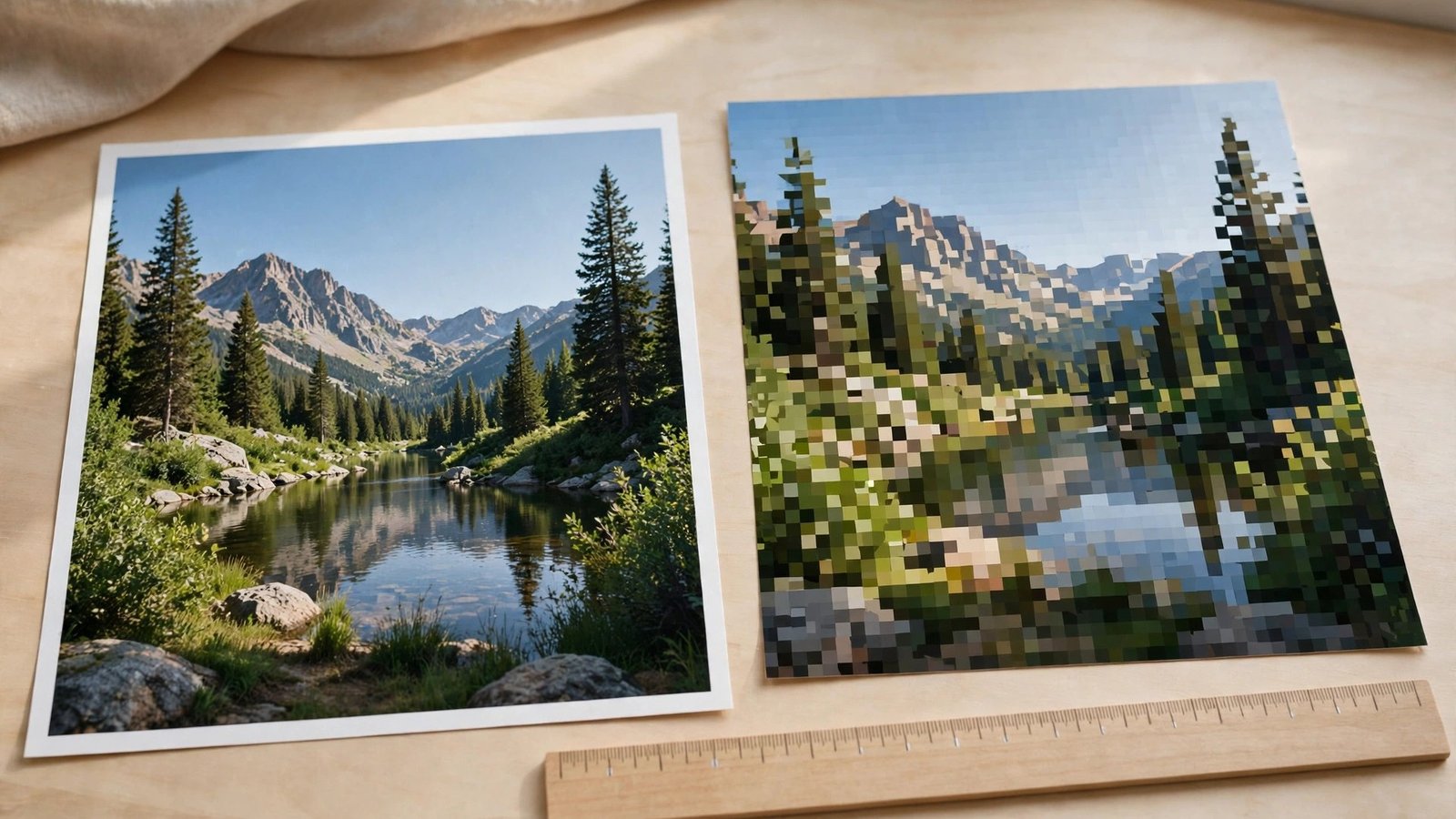
What actually changes: the print size
The one thing that changes is the size the printer aims for. Print size in inches is pixels divided by DPI, so the same pixels print much larger at 72 DPI than at 300 DPI. Take a portrait photo that is 2400 × 3000 pixels:
| DPI value | Print size | Pixels per inch on paper |
|---|---|---|
| 72 DPI | 33.3 × 41.7 inches | 72 |
| 150 DPI | 16 × 20 inches | 150 |
| 300 DPI | 8 × 10 inches | 300 |
At 300 DPI the printer packs 300 pixels into every inch, so the photo comes out at 8 × 10 inches — a standard print size. At 72 DPI the same pixels are spread thin, only 72 per inch, so the printer aims for a poster roughly 33 × 42 inches wide. The photo is identical. Only the claimed size changed.
The same logic applies to any file. A 3000 × 2000 pixel photo prints at 10 × 6.7 inches at 300 DPI, but at 41.7 × 27.8 inches at 72 DPI. A small 1200 × 1800 pixel image prints at 4 × 6 inches at 300 DPI and at 16.7 × 25 inches at 72 DPI. If you want to check your own file, the DPI calculator works out the print size at any DPI value in seconds.
What does not change: everything you can see
Switching the label from 72 to 300 DPI does not change the pixels, the visual detail, the colours, or the file's appearance on screen. Your monitor shows pixels, not inches. A 2400 × 3000 image looks identical on screen at 72 or 300 DPI, because the screen never reads the DPI value at all. The file size barely changes either — the DPI label is only a few bytes in the header, so rewriting it does not recompress the image or add data.
This is why the idea of "upgrading" an image by raising its DPI is a trap. If your source is a 600 × 600 pixel thumbnail, labelling it 300 DPI does not make it print sharply at 8 × 10 inches. It only promises a print of 2 × 2 inches, because 600 divided by 300 is 2. To print at 8 × 10 inches at 300 DPI you need 2400 × 3000 pixels, and no DPI setting can invent the missing pixels. The honest framing is simple: DPI is a label, pixels are the image, and only the pixels decide how much detail a print can hold. Our guide to what DPI means explains this in plain English, and our post on whether you can really increase DPI covers the limits in more detail.
When 300 DPI matters
300 DPI matters when a print shop, stock agency, journal or submission form checks the label. Their presses are calibrated around 300 dots per inch for close-viewed photo prints, and their intake software reads the DPI field before a human ever sees the file. A file that declares 300 DPI passes the check. A file that declares 72 DPI gets flagged as low resolution, even when its pixels are perfectly adequate — because the system reads the claimed print size and compares it with the size you ordered. A 3000 × 2000 photo at 72 DPI claims to be a 41.7 × 27.8 inch print, so the system concludes it cannot cover your 10 × 6.7 inch order sharply, and bounces it.
Setting the label to 300 DPI is how you tell their system "yes, this file is print-ready." It takes seconds with the DPI converter: upload the file, choose 300 DPI, and download. The pixels are untouched, only the label changes, and the same photo now claims exactly 10 × 6.7 inches. If you need the full step-by-step for that exact situation, our guide to converting to 300 DPI walks through it.
When 72 DPI is fine
72 DPI is fine for anything that stays on screen. Websites, social media, slides and email all ignore the DPI value and display pixels. A "72 DPI" label on a 4000-pixel-wide photo is perfectly fine for Instagram, because Instagram looks at pixel dimensions and file size, not at the label. The number 72 comes from the early days of computer screens, when displays were roughly 72 pixels per inch, and it stuck around as the default that many cameras, phones and screenshot tools write into files. It is a legacy default, not a warning sign.
72 DPI is also fine for large-format prints viewed from a distance, though those usually use 150 DPI instead. A billboard or a trade-show banner is never viewed from a foot away, so the eye cannot resolve 300 dots per inch on it anyway. What matters there is having enough pixels for the size, and 150 DPI keeps file sizes manageable. For the full map of which value fits which job, see our guide to what DPI you need.
How to switch between 72 and 300 DPI
Changing the label is a metadata-only edit, and it is worth doing properly rather than re-saving the file in an editor. Re-saving a JPEG recompresses it and throws away a little quality each time. A converter that only rewrites the header avoids that entirely.
To go from 72 to 300 DPI, open the DPI converter, upload your image, choose 300 DPI, and download the result. Then check your work with the DPI checker — upload the downloaded file and confirm it now reads 300 DPI, and look at the pixel dimensions at the same time. If the pixels are enough for your print size, you are done. If they are not, no DPI value will fix that, and your honest options are a smaller print or a higher-resolution original. Our guide to fixing a low DPI rejection covers exactly that decision, and our print preparation checklist walks through the whole process from pixels to paper.
Frequently asked questions
Is 300 DPI better than 72 DPI?
Neither is "better" on its own. They are different print-size instructions for the same pixels. 300 DPI packs pixels densely for a sharp close-viewed print, while 72 DPI spreads them wide for a large print or a screen. The pixels decide quality; the DPI label only decides the claimed print size.
Does changing DPI from 72 to 300 improve quality?
No. Changing the DPI label never adds sharpness, detail or quality, because the pixels stay exactly the same. A 2400 × 3000 photo looks identical on screen at 72 or 300 DPI. What changes is the print size: 8 × 10 inches at 300 DPI instead of 33.3 × 41.7 inches at 72 DPI.
Why does my photo say 72 DPI?
72 DPI is the legacy default that many cameras, phones, screenshot tools and AI image generators write into files. It is not a warning and it does not mean the photo is low quality. It only matters if a printer or a form asks for a different value, and then you can change the label in seconds with the DPI converter.
Do I need 300 DPI for Instagram or websites?
No. Websites and social media ignore the DPI value and display pixels. What matters online is pixel dimensions and file size. A 72 DPI label on a wide, high-pixel photo is perfectly fine for Instagram, a website or a slide deck.
Before & after sample
Sample photo — try the tool above with your own image for the real result.

← Back to all blog posts · All Guides · Increase DPI of an image