DPI vs PPI vs Resolution: What Is the Real Difference?
DPI, PPI and resolution get used interchangeably in casual conversation, and that causes real mistakes — like "increasing the resolution" by changing a metadata number, or buying a high-DPI printer setting to fix a low-pixel photo. Here is the clean separation: what each term actually measures, when each one matters, and where people go wrong.
November 4, 2026
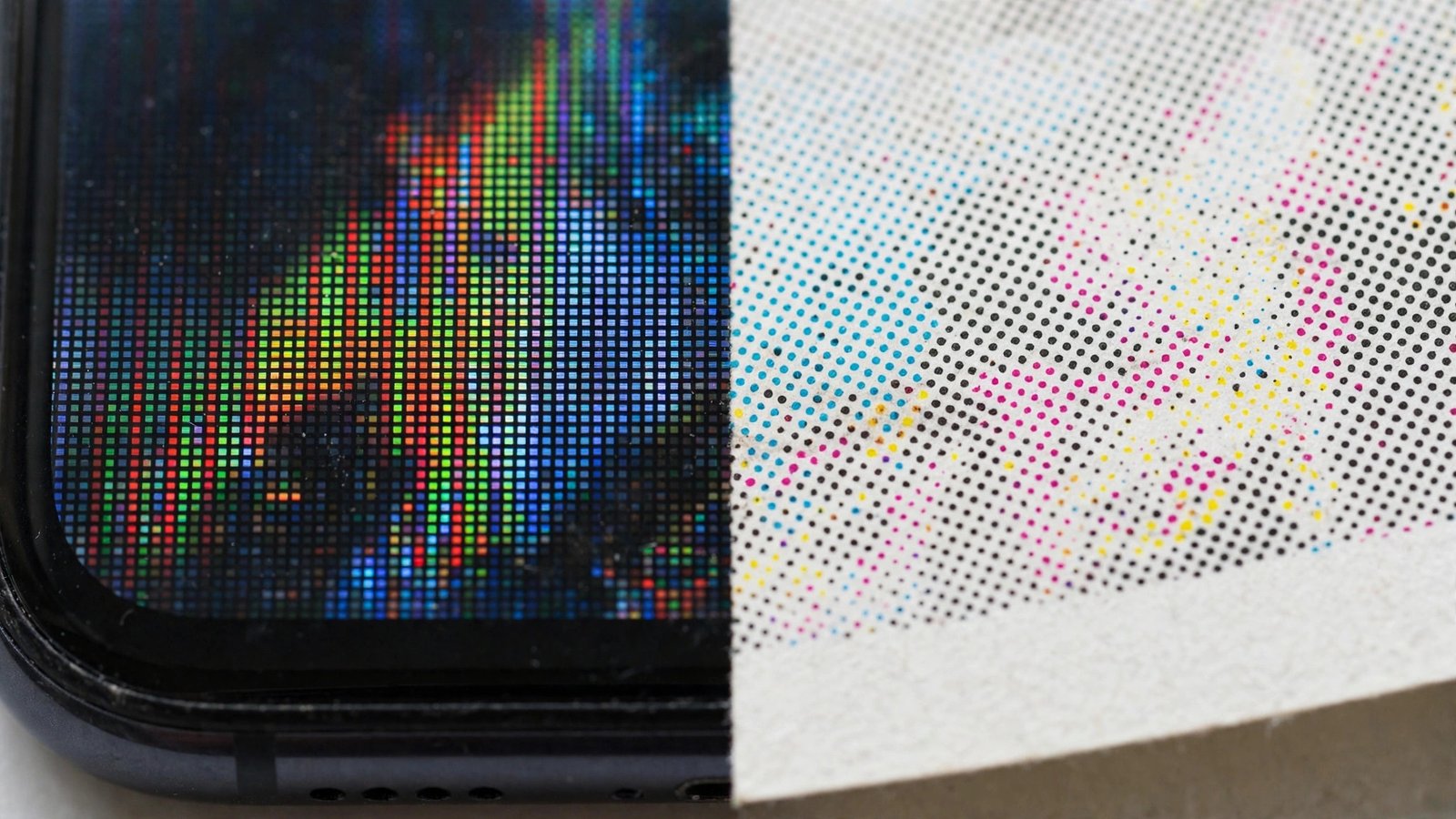
Resolution: how many pixels your image contains
Resolution is how many pixels your image contains — for example 4000 × 3000, or 6000 × 4000. This is the real measure of captured detail. More pixels mean more information, larger possible prints, and more room to crop. A 6000 × 4000 photo holds 24 million pixels; a 1200 × 800 photo holds under one million. That difference is visible in every print, because it is a difference in the image itself.
Nothing you do after shooting can add genuine resolution. You can only preserve it or throw it away. Cropping throws pixels away: a 4000 × 3000 photo cropped to half its area becomes 2000 × 1500 pixels, which at 300 DPI prints at 6.7 × 5 inches instead of 13.3 × 10 inches. Resizing down throws pixels away too. Upscaling does not add resolution either — it stretches the pixels you already have and guesses at the gaps. The result may look smoother, but it contains no more real detail than the original.
Resolution is the one number that matters always. It is the raw material. Before you worry about DPI or PPI, check your pixel dimensions, because they set the ceiling on everything else. The DPI checker shows your pixel dimensions alongside the DPI label, so you can see both at a glance. If you want the full background on the DPI half of the story, our plain-English guide to what image DPI is is a good next read.
DPI: how densely a printer places those pixels
DPI, dots per inch, is a print instruction: how densely a printer should place your pixels on paper. It is a single number stored in the file header. Change it and the pixels do not move — only the claimed printed size changes. A 3000-pixel-wide photo at 300 DPI claims 10 inches, because 3000 divided by 300 is 10. At 72 DPI the same pixels claim about 41.7 inches, because 3000 divided by 72 is 41.7. Same pixels, different promise.
That is why DPI matters to printers and submission forms. Their intake software reads the label and does the division. A file that declares 300 DPI passes the check for a photo print. A file that declares 72 DPI gets flagged, even when its pixels are perfectly adequate, because the claimed print size looks far too large for the order. Setting the label to the value the printer asks for — usually 300 DPI — is a ten-second job with the DPI converter, and it changes nothing about the image itself. Only the label changes, so there is no quality loss. Our guide to fixing a low DPI rejection walks through the exact case where this matters most.
PPI: how densely a screen packs pixels
PPI, pixels per inch, describes screens: how many pixels a display packs into each inch. A phone screen at 400 PPI looks razor-sharp because its pixels are tiny and dense. A large office monitor at 100 PPI looks softer at the same viewing distance, because its pixels are bigger and further apart. PPI is a property of the hardware you are looking at, not of the image file.
That distinction is where most confusion lives. When you buy a monitor or a phone, PPI is a useful comparison: higher PPI usually means a sharper-looking screen. When you are preparing an image file, PPI almost never matters, because the file does not know or care what screen it will be shown on. A 2400 × 3000 photo looks the same on a 100 PPI monitor and a 400 PPI phone in terms of content — it is simply shown at a different physical size, because each screen renders its pixels at its own density.
The one overlap is in the file itself. In image files, DPI and PPI are stored in the same metadata field, so tools — including ours — treat them interchangeably. If a form asks for 300 PPI, setting 300 DPI satisfies it, because there is only one field and both names point at it. In a PNG, that field is the pHYs chunk, which stores the value as pixels per metre: 300 DPI works out to 11,811 pixels per metre. If you want to check the value in your own file, our guide to checking the PPI of an image covers it, and the DPI checker reads the field directly.
The three side by side
| Term | What it measures | Where it lives | When it matters |
|---|---|---|---|
| Resolution | Pixel count, e.g. 4000 × 3000 | The image grid itself | Always — it is the raw material |
| DPI | Print density, e.g. 300 dots per inch | A label in the file header | Printing, and forms that check the label |
| PPI | Screen density, e.g. 400 pixels per inch | The display hardware | Buying or comparing screens |
A useful mental shortcut: pixels are the cake, DPI is the serving instruction, and PPI is the plate it is served on. The cake is the real thing. The serving instruction tells the printer how big to cut the slices. The plate is the screen you happen to be looking at, and it changes nothing about the cake itself.
Worked through with real numbers, the separation is easy to see. Take a 3000 × 2000 pixel photo. Its resolution is 3000 × 2000 — six million pixels — and that never changes unless you crop or resize. At 300 DPI it prints at 10 × 6.7 inches. At 150 DPI it prints at 20 × 13.3 inches. At 72 DPI it prints at 41.7 × 27.8 inches. Those are three different DPI values for one resolution. And on screen, the photo is the same 3000 × 2000 grid whether the display is 100 PPI or 400 PPI — the higher-PPI screen simply renders it smaller and sharper to the eye. The DPI calculator lets you try any combination of pixels and DPI and see the print size instantly.
The common trap
The trap is the sentence "I increased my DPI to 300, so my image is now high resolution." No — the resolution, the pixel count, never changed. The label changed. If a print shop also checks pixel dimensions, a small photo with a 300 DPI label still fails. A 600 × 600 pixel image at 300 DPI prints sharply at 2 × 2 inches, because 600 divided by 300 is 2, and no DPI value will make it print sharply at 8 × 10. Check both numbers with the DPI checker, and use the DPI calculator to see exactly how large your pixels print at any DPI.
Frequently asked questions
What is the difference between DPI and PPI?
DPI is a print instruction stored in the file: how many pixels a printer should fit into each inch of paper. PPI describes a screen: how many pixels a display packs into each inch. In image files they share the same metadata field, so setting 300 DPI also satisfies a form that asks for 300 PPI.
Is resolution the same as DPI?
No. Resolution is the pixel count of the image, for example 4000 × 3000. DPI is a label that tells a printer how big to print those pixels. Changing DPI never changes the resolution, because the pixels stay exactly the same.
Does increasing DPI increase resolution?
No. Increasing the DPI label only changes the claimed print size — the same pixels print smaller and denser. The pixel count, which is the resolution, does not change. A 600 × 600 image at 300 DPI still only prints sharply at 2 × 2 inches.
What PPI do I need for printing?
PPI is a screen measurement, so it does not apply to printing. What printers check is DPI, and for most photo prints that is 300. If a form asks for 300 PPI, set 300 DPI with the DPI converter — the two share the same field in the file.
Before & after sample
Sample photo — try the tool above with your own image for the real result.

← Back to all blog posts · All Guides · Increase DPI of an image